In this tutorial, I’m going to show you how to swap out parts of an image for a scratcher feature for your apps. This is part 2 in the Scratcher series. Click here to see Part 1 where I teach you how to erase parts of an image to reveal a second image underneath.
Demo
Background
This is a tutorial for creating a scratcher feature using the Godot feature. This tutorial will focus on the “drawing” aspect of a scratcher rather than the loading and reloading of images.
If you’ve never heard of Godot, it is a 2D and 3D gaming engine that can export to virtually any platform. It’s designed to be easy for beginners and hobbyists, but also powerful enough for experienced developers. Get more information on Godot here.
If this engine sounds interesting to you, I suggest you follow the step-by-step guide on their website through the “Your first game” tutorial.
Implementation
For this feature, I’m going to use the Resources framework in Godot because we want to have a bunch of textures already loaded that we can duplicate and move around. Anyway, be sure to read through that Resources introduction linked above before continuing.
I considered having a class manage the retrieval, storage, and outputting of textures, but I haven’t figured out how to do that yet, so for now, it’s just going to be in the same script.
First, we’re going to have a 3×3 grid with a 4-pixel border (because the GridContainer automatically sets up a 4-pixel margin between the cells and I haven’t figured out a way to change that (there’s nothing in the reference to suggest it can be changed).
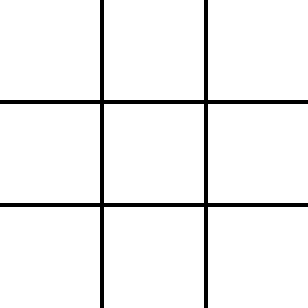
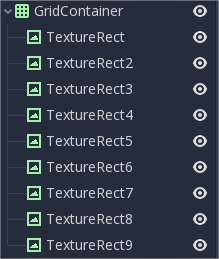
Next, add a GridContainer with 9 TextureRect nodes inside it.
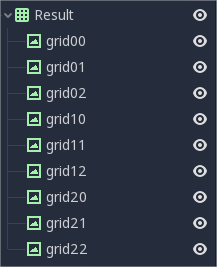
But rename them as follows, this will make it easy to swap out the textures later.
Set the GridContainer’s columns property to 3.
We’re going to need 2 new variables.
var textureDict = {}
var scratcher_texture
In the _init function, we’re going load the textures:
func _init():
	initEraser()
	initTextures()

func initTextures():
	textureDict["ampersand"] = load("res://assets/scratchertiles119/ampersand.png")
	textureDict["at"] = load("res://assets/scratchertiles119/at.png")
	textureDict["dollar"] = load("res://assets/scratchertiles119/dollar.png")
	textureDict["flower"] = load("res://assets/scratchertiles119/flower.png")
	textureDict["music"] = load("res://assets/scratchertiles119/music.png")
	textureDict["percent"] = load("res://assets/scratchertiles119/percent.png")
	textureDict["pound"] = load("res://assets/scratchertiles119/pound.png")
	scratcher_texture = load("res://assets/scratcher3.png")
Next, add a resetScratcher function:
func resetScratcher():
	var keys = textureDict.keys()
	for i in range(0,3):
		for j in range(0,3):
			var index = randi() % keys.size()
			get_node("Result/grid" + String(i) +  String(j)).texture = textureDict.get(keys[index])
	$Scratcher.set_texture(scratcher_texture)
Make sure to call it in _ready(). Test to make sure the grid gets populated with the symbols.
Next, we’re going to use a Timer to continuously reload the scratcher to make sure it will reset the scratcher appropriately. In the timeout handler, just call resetScratcher.
func _on_ScratcherTimer_timeout():
	resetScratcher()
Now, in your _process function, start the timer when we clear the Scratcher texture.
func _process(delta):
	if scratched_amount / num_pixels > complete_percentage:
		$Scratcher.set_texture(null)
		scratched_amount = 0.0
		$ScratcherTimer.start(2)
 Johnny's Dabblings