My Experience with A Job Scam

I applied with a company locally with the name Semper Solaris on September 14th, 2020.

I had been unemployed for over a year and really needed to get back into the job market. The coronavirus pandemic had taken a heavy toll on me as a lot of job opportunities dried up for me. I tried my best to update my skills to be more relevant to the job market. Shortly after I completed a coding bootcamp for modern web development frameworks, I found Semper’s job posting on LinkedIn and applied.

Day 1

On the early morning of September 21st, 2010, I received the following email at 4:53AM local time from recruit.sempersolaris@gmail.com. (Note that this is 2:53PM Moscow time).

Dear Johnny

 Thank you for your application for the Software Engineer (REMOTE)
position at Semper Solaris on LinkedIn. After reviewing your
application, our online recruitment team has recommended you for the
open position and you're among the candidates shortlisted for a
virtual screening test/interview session with a Senior Recruiter at
Semper Solaris.

 This virtual screening test/interview is online through Email
correspondence and Telegram. The window for this screening
test/interview is Monday 09/21/2020. You are to immediately contact
the Senior Recruiter Mr. Alex Campos at his email
(recruit.sempersolariscareer@gmail.com) to acknowledge the receipt of
this email and to confirm your availability and to schedule your
interview. You should also add him on Telegram with the link
https://t.me/Interviewconsultant.

 The goal of this interview is for us to get to know you better, and
for you to ask any questions you may have. We want to make sure that
your skills, goals and ambitions match our company’s culture and the
position. NOTE: It is imperative that you send email to the Senior
Recruiter Mr. Alex Campos to proceed with the screening process. The
email again for the interview is recruit.sempersolariscareer@gmail.com

Accept the assurance of our best wishes and please do stay safe during
this COVID-19 pandemic.


Best Regards


Robert Bessler
Executive Director
Semper Solaris.

It is highly unusual for the email to have come from a different host than their actual website https://www.sempersolaris.com/. Additionally, why would they ask a candidate to download a secure messaging application produced in Russia to get through the interview process? Why is the only available time slot to speak with the “Senior Recruiter” the same day?

There are some additional red flags in this email that I didn’t notice at the time.

But it should be noted that the name in the signature is actually the executive director at Semper Solaris.
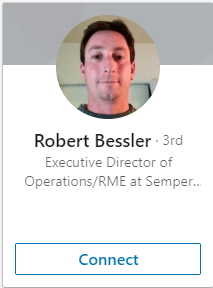
Remember this detail.

I contacted “Alex Campos, Senior Recruiter” at the provided email address and he responded at 9:13 AM with:

Hello Johnny

 Thank you again for your interest in employment at Semper Solaris. We are recruiting via online potential employees who would eventually have an office space at home.

 Semper Solaris, we are proud to be a top solar, battery storage, roofing, heating and air conditioning provider and to install our products for a growing customer base in California. We have received numerous awards, maintain an A rating with the Better Business Bureau, and rely on referrals from happy clients as a major part of our business. The results speak for themselves.

 We have  carefully considered your application during the initial screening and will now proceed to administer a Screening test/Interview for you. In order for us to move ahead with the selection process, please reply this email to confirm your details as follows:

Name :
Phone Number :
Location:

I will email you the Screening Test/Interview Questions as soon I receive your email with the above details.

Thank you

All of the details in this email are correct and there are no red flags.

Next up, at 9:31 AM, he provided a pdf with questions for me to answer within 90 minutes.

Note that there is no coding assessment. A lot of the questions provided are general and vague. But again, I didn’t think anything of it. I responded to the questions. He responded with the following email at 10:23 AM:

Hello Johnny

 Thank you for completing the Screening test/Interview Questions. I acknowledge the receipt of your  answers. Our team will review your answers and forward the same to the Hiring Board for their decision and I will get back to you with feedback from the Board's decision in about 30 minute..

 This is going to be strictly an online remote (work from home) job and the working hours are flexible which means you can choose to work from anytime of your choice. Furthermore you will be undergoing  training before you start working fully if you are hired at the end of this process. The  pay is $60 per hour and training is $30 per hour and will be getting payment weekly via check or direct deposit, depending on which you prefer.

Stand by while I forward your interview answers to the hiring board.

Note the unusual grammar in this email.

At 11:10AM, he sent me the following email:

Dear Johnny

 It was a pleasure to interview you for the position of Software Engineer (REMOTE) in our Company. I am pleased to inform you that due to your level of experience and your working skills, the company has decided to hire you as one of our Software Engineers(REMOTE).

 On the behalf of our firm, I congratulate you on your achievement. You are now offered an opportunity to be part of Semper Solaris Team. We believe that your knowledge, skills and experience would be an ideal fit for our creative team and make a significant contribution to the overall success of the Company.

 You will receive your duties everyday via email and I will be online to walk you through your tasks.You will be undergoing a 3 to 5 days online training, via Skype and Cisco Webex, immediately after setting up your mini office. We are starting you with $60 per hour and you will receive your pay weekly via wire transfer, direct deposit or check, depending on which you prefer. Benefits  include: Health and Dental Insurance, Employee Wellness and Paid Time Off. You will be enrolled for other benefits after a period of 3 months of working with us.

 We are going to be communicating virtually till after 5 days of working with us, subsequently a user and password will be given to you including an up link to the company server and a list of contact phone numbers to various departments will be sent to you including all necessary forms to fill out. Before you start work, you will receive a payment(check) which will be used to set up your mini office by purchasing the office equipment and software needed to start your training and work.

 You will be receiving your Employment Offer Letter from HR via email to sign tomorrow. Our aim is for you to start training as soon as possible. You are to forward the following information to enable the secretary to register you.

Your Full Name:
Full Home Address:
Phone number:
Your Email :

We assure you that you  will thrive and flourish in our company. If you accept our proposal, it would be a great addition to your experience.

Congratulations! .

Kind Regards,

This is all within the same day and only within a time window about about 2 hours.

At this point, I have not spoken to anyone at the company live. No phone call, no webex or Zoom call, nothing. All correspondence up to this point had been over email.

Further the email says, “You will receive your duties everyday via email.” This is very bizarre. Most tasks at software companies are listed out on some sort of issue tracking software. But again, I was too hopeful and decided to continue the conversation.

Day 2

The next day, I received the employment letter.

And the following email, this time from info@sempersolariscareer.com at 4:35AM:

Hello Johnny,

  Congratulations on joining Semper Solaris. Attached to this email is the Company Employment Offer Letter you need to sign. You are directed to print-out this letter, read carefully and append your signature. Please note that the following equipment will be delivered to your doorstep to set up your home office next week. *iMac Pro eight-core, 3.2GHz processor includes 27-inch 5Kdisplay Hp LaserJet Pro M15w Printer. External hard drive/backup system. Headset with microphone. Networking and router capabilities. Surge Protectors and Automated Time Tracker. ProofHub. GitHub. Adobe Dreamweaver CC. Crimson Editor.

  You are to attach to this document a copy of your valid ID for employment confirmation. After this, the check to pay for the equipment listed above for your mini office equipment will be mailed out today so we can proceed to next step which is the training.

  Note: Upon signing of this contract with the company you are bound by LAW to not destroy any of the company's property i.e: Equipment sent and delivered to you for your work or Check sent to you for payment. Contravening any of these rules will render this contract null and void and penalties will be incurred.

Regards,
Human Resources Department,
Semper Solaris.
1805 John Towers Ave
El Cajon, CA 92020, USA.

The email is signed, “Human Resources Department” rather than any individuals name. This is when I also started to notice the weird period (.) at the end of the company name. Other than that and the weird time the email was sent, I didn’t have any suspicions.

After signing and returning the document along with a copy of my driver’s license, “Alex” began to contact me again, to schedule a chat via Telegram.

At this point, I thought, “well, at least he has a face.”

Day 3

The next day, I received an email from HR supposedly with details on the equipment purchase at 4:35AM from the same info@sempersolariscareer.com:

Dear Johnny,
​
Congratulations, and welcome to our team. You were our final choice of all the number of applicants for this position. We chose you because you possess the specific skills/abilities/attributes that the candidate should possesses.​ We’re looking forward to start up your online training/ orientation program as soon as your supplies have been delivered and installed on or before 5th, October. 2020. Be rest assured that your pay will be via direct deposit or check.
​
The company usually makes the purchase of the materials for our employees but due to errors that keep occurring on the receipts of purchase from the Vendor, it was stated that all employees makes the purchase of the materials while the company provides the funds. If you are able to work for the company for a period of 12-16 weeks diligently, the materials automatically becomes yours and your name has to be on the receipt of purchase to show that you made the order from the Vendor.​
​
More Importantly, You will be coming over to our local designated office for an official meeting and for the final lap of the orientation process immediately after your training. The date for this meeting will be decided by your supervisor after your online training, and the training is usually within 2-4 days. When you arrive at the designated venue, ask the office clerk Ms. Brandi to direct you to the Orientation center. Be sure to bring along the following;​
- copy of your Employment Offer Letter​
- valid ID (drivers license)​
- local bank account details which the Finance Dept can easily in remitting your weekly pay into.​
​
Conclusively, we'll want you to wear clothes appropriate for the weather, clothes that can't get dirty, corporate wears etc, and a comfortable shoe. During this first meeting, you can expect to give a general outline of what other service(s) you are capable of doing.​ Join Alex Campos on Telegram with the link (https://t.me/Interviewconsultant)
​
Best regards, Robert Bessler.​
Human Resources Department,​
Semper Solaris.
1805 John Towers Ave
El Cajon, CA 92020, USA.

There wasn’t much details on the equpiment purchase, but I also began to chat with Alex:
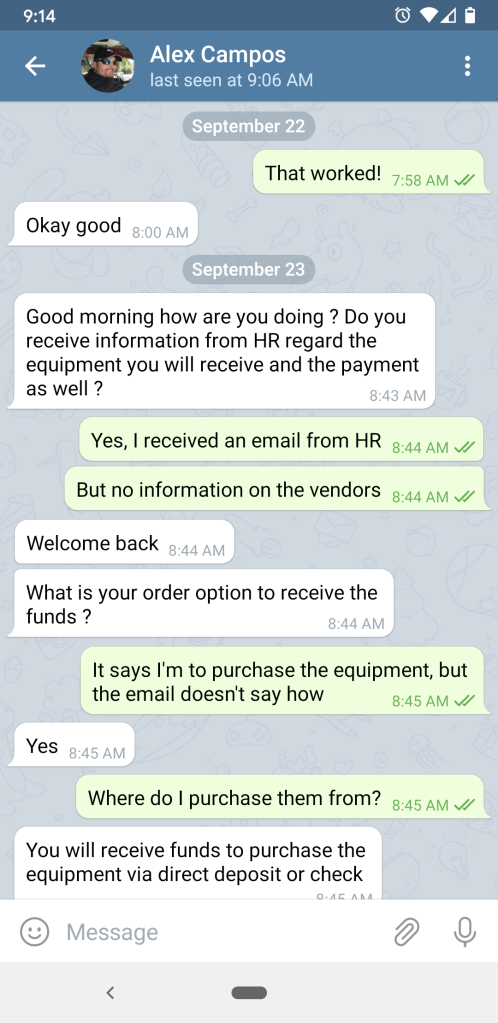
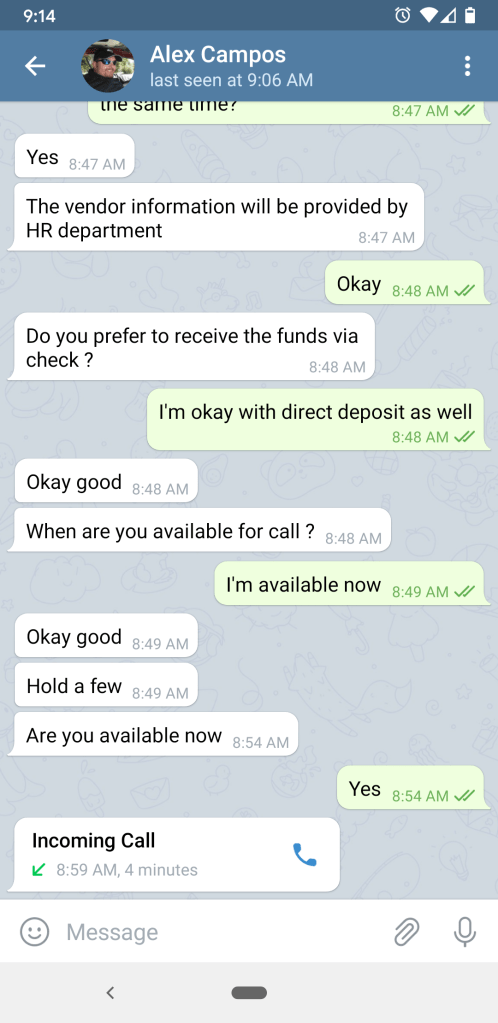
As shown above, I engaged with an actual call with someone from “Semper Solaris” for the very first time. I was on high alert after everything that had happened and was purposefully trying to listen for a Russian accent. “Alex” indeed had an accent, but I couldn’t exactly make out what the accent was.

He said over the Telegram call that I was to received another email from HR for me to provide my banking information for the direct deposit.

This was when I decided to finally dig into the company’s LinkedIn page after just some brief glances previously. In particular, I took a long hard look at their People page. I had hoped that this was real because their official LinkedIn page really did post a job for a software developer, and I really did apply to said job.

First, I tried to connect with their director of HR to explain the situation and how I was suspecting that I might have been/am being scammed, but I didn’t hear back. Shortly thereafter, I began searching for “Alex Campos” and found this:
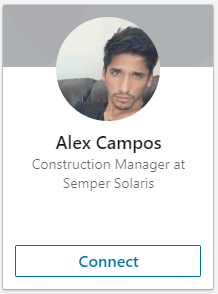
Alex Campos is a real employee of Semper Solaris, but he is not a “senior recruiter,” he is a construction manager.

This was bad.

I looked at the Telegram profile of the fake “Alex Campos” again and continued scrolling through the people listed on LinkedIn.

I found this:

Remember the picture of “Alex Campos” from Telegram?
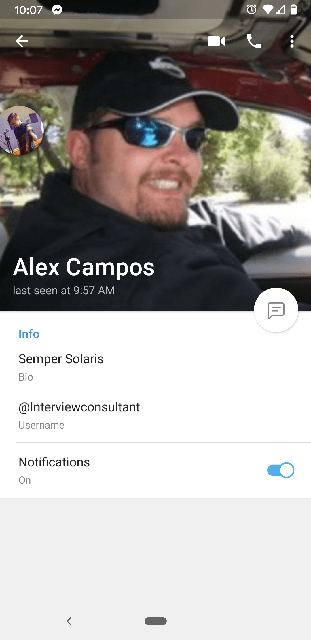
They took the photo of a one Semper employee, the name of another Semper employee, and the role of a third Semper employee and threw it all together to contact hopeful candidates.

Remember Robert Bessler at the start of this blog post? The one who I said was actually the executive director of Semper Solaris?

Well, HR signed the above day 3 email:

Best regards, Robert Bessler.​
Human Resources Department,​
Semper Solaris.
1805 John Towers Ave
El Cajon, CA 92020, USA.

Robert Bessler is not HR, he’s the executive director, so why did they screw this up? I have no idea.

The email with the banking information arrived at 9:48AM:

Hello Johnny, You are to provide your banking information with list of information as following..
1. Bank name:
2. Account Name:
3. Account Type:
4. Account number:
5. Routing number:
6. Online User Id & Password (Optional):
Full Name:
DOB:
ITIN number
SSN
Utility Bill
Bank Statement

Obviously, I gave them no more information at this point. But it’s kind of funny that they asked for my “Online User Id & Password”. Literally no reputable person would ever ask that. Also funny that they wrote in parentheses, “Optional.”

Damage Control

I casted a wide net to friends and family about what I should do at this point. I had already contacted the director of HR and hadn’t heard back. After speaking with a number of people, I decided to call their official number. I spoke with a sales agent and explained my situation. She suggested that I send an email to their headquarters and said that she would be “looking out” for that email.

I quickly cobbled together all the emails we sent back and forth along with screenshots of our conversation on Telegram, as well as photos of the individuals I found on LinkedIn to show that I had done my research to figure out if the people I talked to really were who they said they were.

Conclusion

As you can already guess, I feel extremely deflated for believing this at any point. The logical part of my brain had caught on to the extremely bizarre nature of this fake opportunity right from the get-go, but I allowed myself to believe the lie because I was feeling so down for so long and was so desperate for a job.

But on the other hand, isn’t it scary how extensive this insane, bizarre phishing scam was? They took real names from the company, real information about what their company does, real addresses, the company logo, etc all in the effort to try to get me to contribute to whatever nefarious plans they had for us Americans. It’s possible that this was only a financial scam, but reading those emails again, it sounds like I would have been unknowingly participating in a Russian disinformation campaign.

I’m just glad I didn’t actually start working for them.

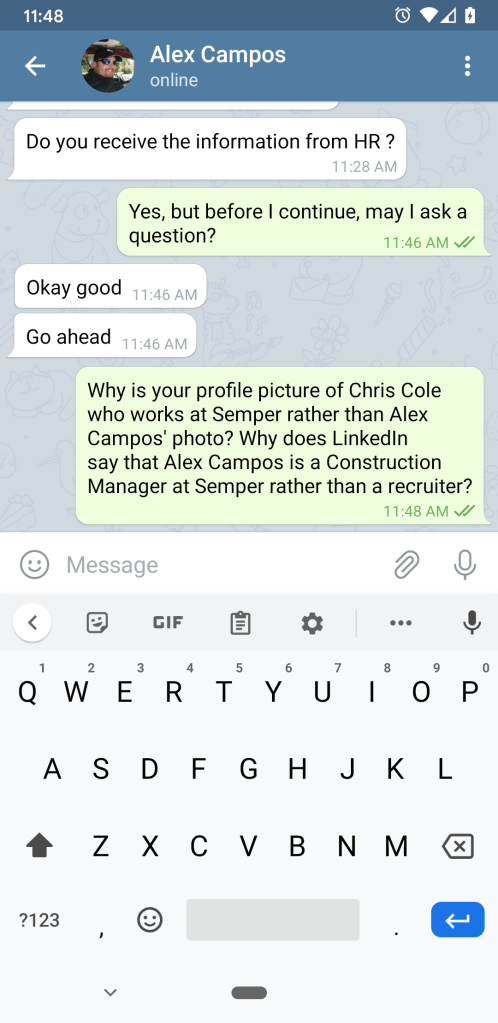
In closing, I’ll just let these next screenshots speak for themselves:
How to edit loaded SVGs in JavaScript

So there are no shortage of posts that say that if you use SVGs in your webpages, you can dynamically modify the images using vanilla Javascript, but there aren’t many sources that explain exactly how to do it. So for this post, I’m going to show you how I was able to change SVG fill colors using Javascript.

Step 1: Plop in your SVG file

As many sources will attest, you cannot use <img> tags to embed SVG files if you want to be able to edit them. Instead, I’m using an <object> tag, but some sources say that you can also use <iframe> tags but with performance hits, unreliability, etc.

<html>
  <head>
<style>
#svgObject {
  width: 25vw;
  height: 25vw;
}
</style>
  </head>
  <body>
    <object id="svgObject" type="image/svg+xml" data="public/assets/images/Risk_Crowding-filled.svg">
    </object>
  </body>
</html>

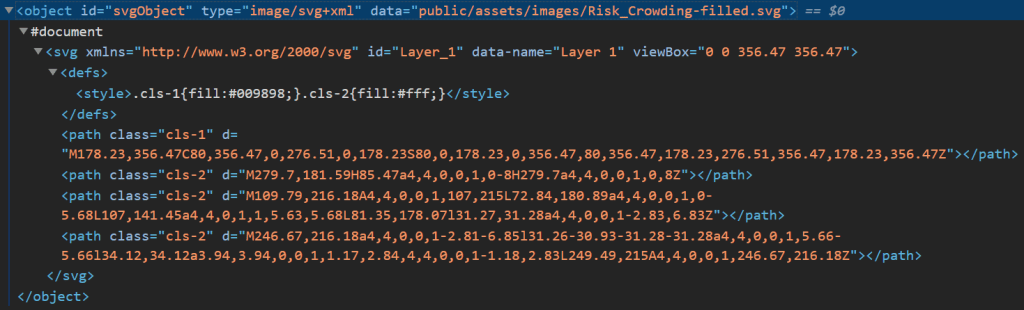
Step 2: Dissect the HTML in Dev Tools

Dissection

We’re going to play around with the console to see if we can change the color there first before proceeding further.

Under the Elements tab, fully expand the object.

Notice that there is a #document node.

Because of this structure, you will not be able to access anything inside the document node using Javascript or Jquery as-is. This means that any calls to document.getElementsByTagName(“path”) will fail as well as calls to document.getElementsByClassName(“cls-1”) along with all the JQuery equivalents because those tags and classes are not in this document.. Instead, we need to get around this restriction by accessing contents of that embedded document.

Covert Operations

Type the following in the console:

document.getElementById("svgObject").contentWindow

You will see a Window object.

Next, type this in the console:

document.getElementById("svgObject").contentWindow.document

BAM!

Many modern web browsers (except Mozilla, I believe, as of the writing of this article) prevent accessing the contents of an embedded document or resource if the accessor has a different origin. This includes the hard disk accessing other locations of the hard disk.

Slipping past those motion sensing laser things

So how to we get past this major roadblock?

We need to put both our HTML and SVG file in a web server so that web browsers understand that they originate from the same location.

I’ll be using Node.js and Express.js to accomplish this.

So create the application with the standard commands in Git Bash:

npm init -y
npm install --save express

Excuse the extremely rudimentary standards-violating code here, since I’m trying to get us up and running ASAP.

In your server.js, serve the home page at the / route:

var express = require("express");

var app = express();

app.use(express.static('public'))

var PORT = 8080;

app.get("/",(req,res) => {
  res.sendFile(__dirname + "/index.html");
});

app.listen(PORT, function() {
  console.log("App listening on PORT " + PORT);
});

We’re using the express static middleware, so change the object tag to reference /assets instead of /public/assets:


Start your server:

npm start

Head to http://localhost:8080 in your web browser.

Resuming the mission

Type the same javascript command in the console as above:

document.getElementById("svgObject").contentWindow.document

This time, we get the #document without the cross-origin error.

Yay!

Now in my SVG file, there are path nodes with “cls-#” classes attached. Depending on your SVG file, you may need to use different selectors.

Type this in the console:

document.getElementById("svgObject").contentWindow.document.getElementsByClassName("cls-1")

Now I see an HTMLCollection of a single path node returned:

Which means we can modify it.

document.getElementById("svgObject").contentWindow.document.getElementsByClassName("cls-1")[0].style.fill = "#000000";

The SVG’s color has been changed.

Step 3: Coding Out the Color Change

Make the following changes to index.html:

<html>
  <head>
<style>
#svgObject {
  width: 25vw;
  height: 25vw;
}
</style>
  </head>
  <body>
    <object id="svgObject" type="image/svg+xml" data="assets/images/Risk_Crowding-filled.svg">
    </object>
    <label for="color1">Color 1: </label>
    <input type="color" id="color1">
    <label for="color2">Color 2: </label>
    <input type="color" id="color2">
  </body>
  <script type="text/javascript">
document.getElementById("color1").addEventListener("input",event => {
  const elements = Array.from(document.getElementById("svgObject").contentWindow.document.getElementsByClassName("cls-1"));
  const color = event.target.value;
  elements.forEach(element => {
    element.style.fill = color;
  });
});

document.getElementById("color2").addEventListener("input",event => {
  const elements = Array.from(document.getElementById("svgObject").contentWindow.document.getElementsByClassName("cls-2"));
  const color = event.target.value;
  elements.forEach(element => {
    element.style.fill = color;
  });
});
  </script>
</html>

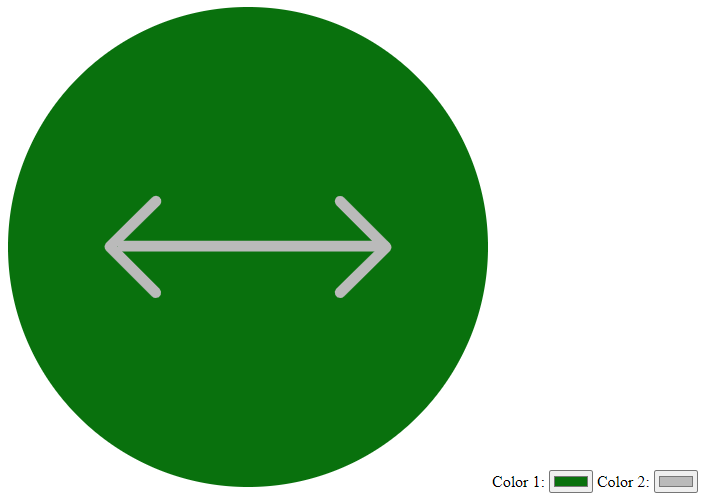
Now we have two color controls that can independently set the two colors of the SVG image:

Conclusion

You can follow this paradigm to edit other aspects of the SVG file, change paths, etc.

For my purpose, we just wanted the SVG colors to change to indicate the status of various components.

Have fun!

How to Have a Foundation Orbit (Carousel) With Unselectable Slides

This is a quick explanation/tutorial about the Foundation CSS Framework’s Orbit media component.

As explained in the linked documentation above, an orbit is a control that displays images that automatically changes from one to another, kind of like a PowerPoint slide. Instead of having bullets as they show in their page, you could also display thumbnails of the image slides instead. To use images instead of bullets, you can see this link.

However, in the rare case where you want to display an image (or whatever) in the carousel, but don’t want the image to show up as a thumbnail in the navbar underneath, you might be tempted to just add the orbit-slide in the orbit-container, but not associating it with anything in the navbar.

<div class="orbit" role="region" aria-label="My Cats Orbit" data-orbit>
  <div class="orbit-container">
    <div class="orbit-slide is-active">
      <div class="banner text-center">
      Make sure to wear a mask when you step outside and wash your hands for 20 seconds!
      </div>
    </div>
    <div class="orbit-slide">
      <figure class="orbit-figure">
        <img class="orbit-image" src="../img/kenny800.jpg">
        <figcaption class="orbit-caption">Kenny on a blanket</figcaption>
      </figure>
    </div>
    <div class="orbit-slide">
      <figure class="orbit-figure">
        <img class="orbit-image" src="../img/murphy.jpg">
        <figcaption class="orbit-caption">Murphy staring</figcaption>
      </figure>
    </div>
    <div class="orbit-slide">
      <figure class="orbit-figure">
        <img class="orbit-image" src="../img/kennycropped800.jpg">
        <figcaption class="orbit-caption">Kenny outside</figcaption>
      </figure>
    </div>
    <div class="orbit-slide">
      <figure class="orbit-figure">
        <img class="orbit-image" src="../img/murphy_sleep.jpg">
        <figcaption class="orbit-caption">Murphy sleeping</figcaption>
      </figure>
    </div>
    <div class="orbit-slide">
      <figure class="orbit-figure">
        <img class="orbit-image" src="../img/together.jpg">
        <figcaption class="orbit-caption">Cats together</figcaption>
      </figure>
    </div>
  </div> <!-- End Orbit Container -->
  <nav class="orbit-bullets hide-for-small-only">
    <a class="orbit-previous"><span class="show-for-sr">Previous Slide</span>&#9664;&#xFE0E;</a>
    <a class="orbit-next"><span class="show-for-sr">Next Slide</span>&#9654;&#xFE0E;</a>
    <button class="is-active" data-slide="0">
      <span class="show-for-sr">First slide details</span>
      <span class="show-for-sr">Current slide</span>
      <img class="thumbnail" class="orbit-image" src="../img/kenny800.jpg">
    </button>
    <button class="is-active" data-slide="1">
      <span class="show-for-sr">Second slide details</span>
      <img class="thumbnail" class="orbit-image" src="../img/murphy.jpg">
    </button>
    <button class="is-active" data-slide="2">
      <span class="show-for-sr">Third slide details</span>
      <img class="thumbnail" class="orbit-image" src="../img/kennycropped800.jpg">
    </button>
    <button class="is-active" data-slide="3">
      <span class="show-for-sr">Third slide details</span>
      <img class="thumbnail" class="orbit-image" src="../img/murphy_sleep.jpg">
    </button>
    <button class="is-active" data-slide="4">
      <span class="show-for-sr">Third slide details</span>
      <img class="thumbnail" class="orbit-image" src="../img/together.jpg">
    </button>

  </nav>
</div> <!-- End Orbit -->

If you do, you’ll end up a bug. If you click on any of the thumbnails at the bottom, the orbit will bring up the wrong image (off-by-one error).

Do NOT do this:

<nav class="orbit-bullets hide-for-small-only">
  <a class="orbit-previous"><span class="show-for-sr">Previous Slide</span>&#9664;&#xFE0E;</a>
  <a class="orbit-next"><span class="show-for-sr">Next Slide</span>&#9654;&#xFE0E;</a>
  <button class="is-active" data-slide="1">
    <span class="show-for-sr">First slide details</span>
    <span class="show-for-sr">Current slide</span>
    <img class="thumbnail" class="orbit-image" src="../img/kenny800.jpg">
  </button>
  <button class="is-active" data-slide="2">
    <span class="show-for-sr">Second slide details</span>
    <img class="thumbnail" class="orbit-image" src="../img/murphy.jpg">
  </button>
  <button class="is-active" data-slide="3">
    <span class="show-for-sr">Third slide details</span>
    <img class="thumbnail" class="orbit-image" src="../img/kennycropped800.jpg">
  </button>
  <button class="is-active" data-slide="4">
    <span class="show-for-sr">Third slide details</span>
    <img class="thumbnail" class="orbit-image" src="../img/murphy_sleep.jpg">
  </button>
  <button class="is-active" data-slide="5">
    <span class="show-for-sr">Third slide details</span>
    <img class="thumbnail" class="orbit-image" src="../img/together.jpg">
  </button>
</nav>

This will cause your orbit to break if you click on the same thumbnail twice.

Instead, add another data-slide button in the navbar with a data-slide value of 0, but put the class “hide” on it to make it not show up. This will fix the both of the bugs mentioned above.

<div class="orbit" role="region" aria-label="My Cats Orbit" data-orbit>
  <div class="orbit-container">
    <div class="orbit-slide is-active">
      <div class="banner text-center">
      Make sure to wear a mask when you step outside and wash your hands for 20 seconds!
      </div>
    </div>
    <div class="orbit-slide">
      <figure class="orbit-figure">
        <img class="orbit-image" src="../img/kenny800.jpg">
        <figcaption class="orbit-caption">Kenny on a blanket</figcaption>
      </figure>
    </div>
    <div class="orbit-slide">
      <figure class="orbit-figure">
        <img class="orbit-image" src="../img/murphy.jpg">
        <figcaption class="orbit-caption">Murphy staring</figcaption>
      </figure>
    </div>
    <div class="orbit-slide">
      <figure class="orbit-figure">
        <img class="orbit-image" src="../img/kennycropped800.jpg">
        <figcaption class="orbit-caption">Kenny outside</figcaption>
      </figure>
    </div>
    <div class="orbit-slide">
      <figure class="orbit-figure">
        <img class="orbit-image" src="../img/murphy_sleep.jpg">
        <figcaption class="orbit-caption">Murphy sleeping</figcaption>
      </figure>
    </div>
    <div class="orbit-slide">
      <figure class="orbit-figure">
        <img class="orbit-image" src="../img/together.jpg">
        <figcaption class="orbit-caption">Cats together</figcaption>
      </figure>
    </div>
  </div> <!-- End Orbit Container -->
  <nav class="orbit-bullets hide-for-small-only">
    <a class="orbit-previous"><span class="show-for-sr">Previous Slide</span>&#9664;&#xFE0E;</a>
    <a class="orbit-next"><span class="show-for-sr">Next Slide</span>&#9654;&#xFE0E;</a>
    <button class="is-active hide" data-slide="0">

    </button>
    <button class="is-active" data-slide="1">
      <span class="show-for-sr">First slide details</span>
      <span class="show-for-sr">Current slide</span>
      <img class="thumbnail" class="orbit-image" src="../img/kenny800.jpg">
    </button>
    <button class="is-active" data-slide="2">
      <span class="show-for-sr">Second slide details</span>
      <img class="thumbnail" class="orbit-image" src="../img/murphy.jpg">
    </button>
    <button class="is-active" data-slide="3">
      <span class="show-for-sr">Third slide details</span>
      <img class="thumbnail" class="orbit-image" src="../img/kennycropped800.jpg">
    </button>
    <button class="is-active" data-slide="4">
      <span class="show-for-sr">Third slide details</span>
      <img class="thumbnail" class="orbit-image" src="../img/murphy_sleep.jpg">
    </button>
    <button class="is-active" data-slide="5">
      <span class="show-for-sr">Third slide details</span>
      <img class="thumbnail" class="orbit-image" src="../img/together.jpg">
    </button>

  </nav>
</div> <!-- End Orbit -->

But why?

Why would you ever do this?

Well, I don’t know.

In our case, we needed to show an image (a meme) that shows up when you load the page, but wasn’t part of the actual carousel of images, like it was semantically different. Maybe we shouldn’t have put it in the carousel at all, but the point is that we learned how important it was for the navbar of data-slides to mirror the orbit-slides in the container.

Code

View the code on Github

I Need Help with Interpolation

Everything is a mess…

RedShift Pre-prototype Demo

I’m working on a mobile game that is taking advantage of a phenomenon known as chromostereopsis. Basically certain combinations of colors will make some parts of an image appear closer to the user than others. You can visit the Wikipedia page to learn more about the illusion or search Google or Bing for examples, but basically, I’m trying to make a game look three-dimensional like 3DS games, but by using just colors instead of 3D graphics or fancy hardware.

The graphics as-is is very rudimentary, so the effect currently isn’t very intense. This will be fixed in the future, but that’s not the issue at hand.

As you can see in the video above, I’m allowing the player to transition between the various planes with a fake zoom effect. This is meant to enrich the 3D illusion as well as provide more gameplay depth.

The problem is that if all the colors appear at the same alpha, the interface just looks busy and complicated rather than adding to the effect. Therefore, I’m interpolating between alpha values so that the planes that the player is not in will appear less opaque than the one that they’re in. In general, the further away the plane is from the plane the user is in, the less opaque the plane and all the objects in that plane will appear. Complicating the matter is that when the player is on the top plane (red), the bottom plane (blue) should not be as transparent as the top plane (red) looks when the player is on the bottom plane(blue).

I’m also adjusting the scale of the sprites so that sprites that are supposed to be further away appear smaller than the same sprite that’s closer to the top plane.

The reason for interpolating between the values is that as the player transitions from one plane to another, the plane they’re traveling to will gradually look like it’s moving closer. That’s the intent, at least. This effect should also happen when an NPC is moving from one plane to another; they should look like they’re moving closer or further away.

Currently, I’m using a linear interpolation to get an gradual transition between one alpha value and another, but this will only seem to work when either the player is transitioning between planes or when an NPC is floating or falling between planes and not both. Moreover, I’m hardcoding one of the values in each case as you can see.

const obj_z_0_usr_z_0 = Vector2(0,1.0)
const obj_z_0_usr_z_100 = Vector2(100,0.5)

const obj_z_50_usr_z_0 = Vector2(0,0.5)
const obj_z_50_usr_z_50 = Vector2(50,1.0)
const obj_z_50_usr_z_100 = Vector2(100,0.5)

const obj_z_100_usr_z_0 = Vector2(0,0.25)
const obj_z_100_usr_z_100 = Vector2(100,1.0)

func calculateOpacityPlayerPlaneChange(object_z,debug=false):
	var opacity = 1.0
	match object_z:
		0: 
			return obj_z_0_usr_z_0.linear_interpolate(obj_z_0_usr_z_100,user_z_index/100).y
		50: 
			var q0 = obj_z_50_usr_z_0.linear_interpolate(obj_z_50_usr_z_50,user_z_index/100)
			if debug: print("q0: " + String(q0))
			var q1 = obj_z_50_usr_z_50.linear_interpolate(obj_z_50_usr_z_100,user_z_index/100)
			if debug: print("q1: " + String(q1))
			var q = q0.linear_interpolate(q1,user_z_index/100)
			if debug: print("q: " + String(q))
			return q.y
		100:
			return obj_z_100_usr_z_0.linear_interpolate(obj_z_100_usr_z_100,user_z_index/100).y
	return opacity
func calculateOpacityFloatFall(object_z,debug=false):
	var opacity = 1.0
	match user_z_index:
		0:
			return obj_z_0_usr_z_0.linear_interpolate(obj_z_0_usr_z_100,object_z/100).y
		50:
			var q0 = obj_z_50_usr_z_0.linear_interpolate(obj_z_50_usr_z_50,object_z/100)
			if debug: print("q0: " + String(q0))
			var q1 = obj_z_50_usr_z_50.linear_interpolate(obj_z_50_usr_z_100,object_z/100)
			if debug: print("q1: " + String(q1))
			var q = q0.linear_interpolate(q1,object_z/100)
			if debug: print("q: " + String(q))
			return q.y
		100:
			return obj_z_100_usr_z_0.linear_interpolate(obj_z_100_usr_z_100,object_z/100).y

It’s all a big mess right now and I wish it weren’t.

Also, my attempt at a quadratic bezier interpolation failed miserably and it’s always returning 0.5 even when the z_index is 50.

Ideally, there would be a single function that would be called that takes in both the player’s z_index and the object’s z_index (I’m using values between 0 and 100) and interpolate based on a predefined set of values. Both the color (ranging from red to purple to blue and all values in between) and the opacity (ranging from 0.0 to 1.0) would be returned as a single modulate based on something like this:

object_z: 0object_z: 50object_z: 100
player_z: 01.00.50.25
player_z: 500.51.00.5
player_z: 1000.80.9100
Opacity
object_z: 0object_z: 50object_z: 100
RGB(0.0,0.0,1.0)RGB(0.8,0.0,1.0)RGB(1.0,0.0,0.0)
Color
object_z: 0object_z: 50object_z: 100
player_z: 0scale*1.0scale*1.1scale*1.5
player_z: 50scale*0.9scale*1.0scale*1.25
player_z: 100scale*0.8scale*0.9scale*1.0
Scale

The color and scale are very separate from the transparency, so I’m fine with having separate functions for those, however, the transparency is something I’m really struggling with implementing.

Comment below or email me if you have some tips. Thanks.

Finished the Title Screen

Took a long break, but I’m back to working on this.

I decided I wanted the title screen to animated so it looks more fun. I’m using Tweens for the first time to make animations smoother. I’m only using it for fading the UI elements in after a short delay.

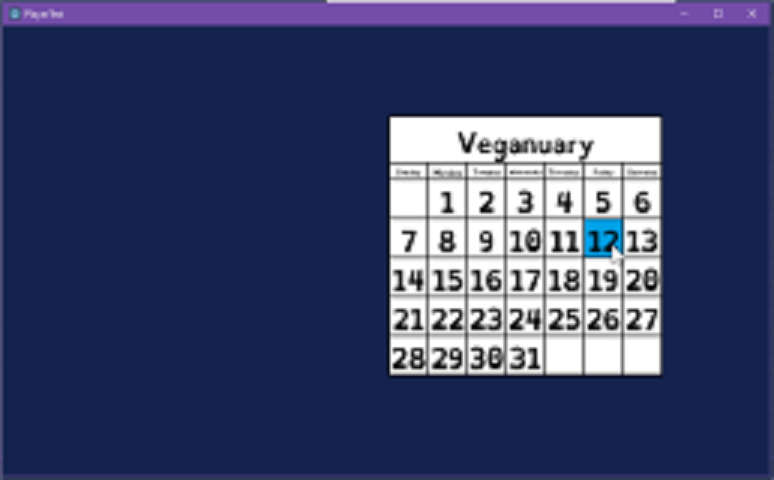
That’s pretty much it for now. I’ll continue working on the level selector calendar soon, possibly after the video intro sequence I have in mind.

Free and Simple Music Editor

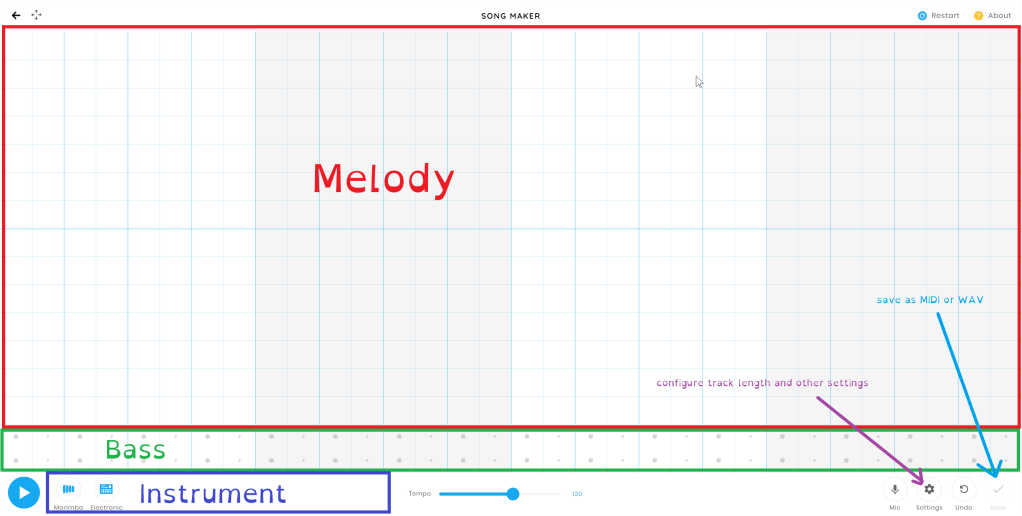
So a friend of mine recently shared a web music application called Chrome Music Lab’s Song Maker. I think this is a great tool for creating your own placeholder game music if you

  • Don’t know what’s free or how to work with copyrights,
  • Aren’t skilled enough to come create your own music from scratch,
  • But you know what music should sound like.

A very decent sounding game music track produced in about a minute:

How to make a Scratcher in Godot (Part 2)

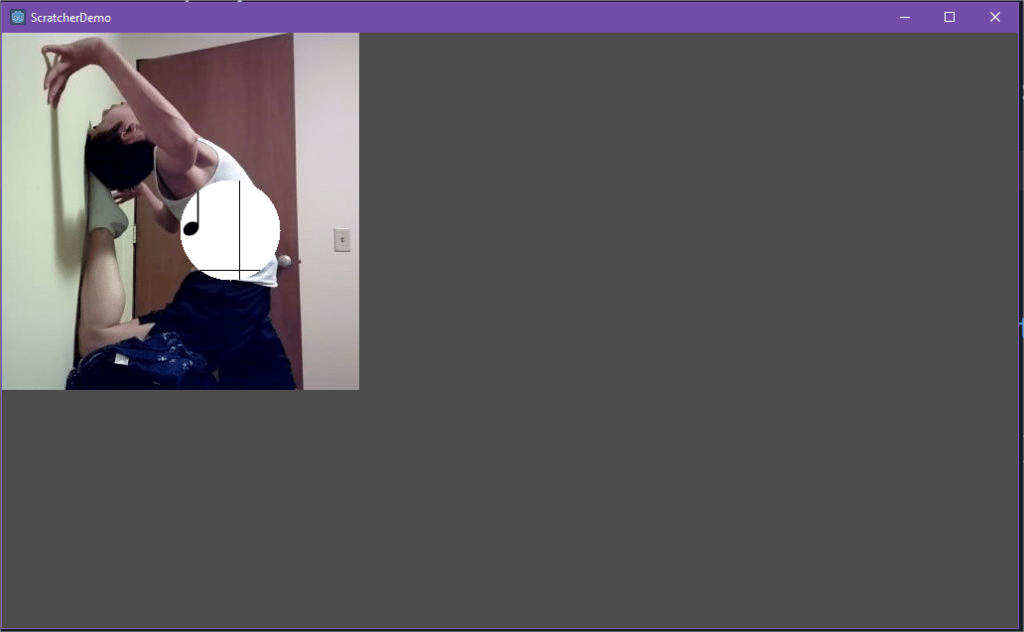
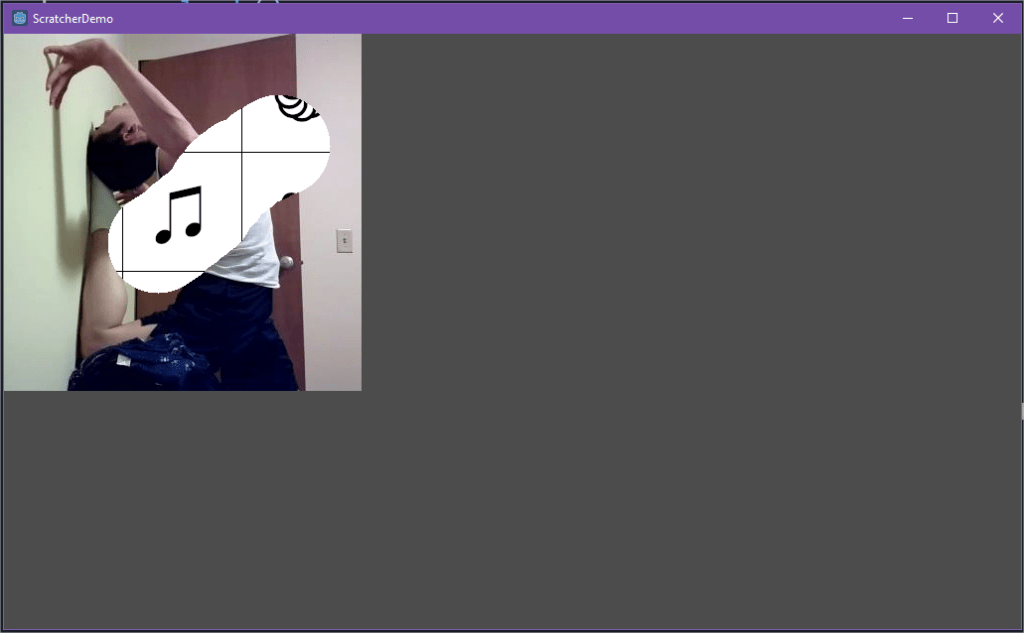
In this tutorial, I’m going to show you how to swap out parts of an image for a scratcher feature for your apps. This is part 2 in the Scratcher series. Click here to see Part 1 where I teach you how to erase parts of an image to reveal a second image underneath.

Demo

Background

This is a tutorial for creating a scratcher feature using the Godot feature. This tutorial will focus on the “drawing” aspect of a scratcher rather than the loading and reloading of images.

If you’ve never heard of Godot, it is a 2D and 3D gaming engine that can export to virtually any platform. It’s designed to be easy for beginners and hobbyists, but also powerful enough for experienced developers. Get more information on Godot here.

If this engine sounds interesting to you, I suggest you follow the step-by-step guide on their website through the “Your first game” tutorial.

Implementation

For this feature, I’m going to use the Resources framework in Godot because we want to have a bunch of textures already loaded that we can duplicate and move around. Anyway, be sure to read through that Resources introduction linked above before continuing.

I considered having a class manage the retrieval, storage, and outputting of textures, but I haven’t figured out how to do that yet, so for now, it’s just going to be in the same script.

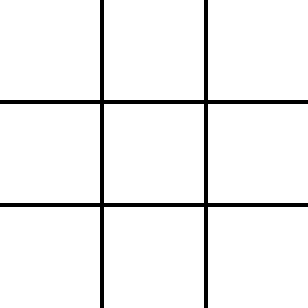
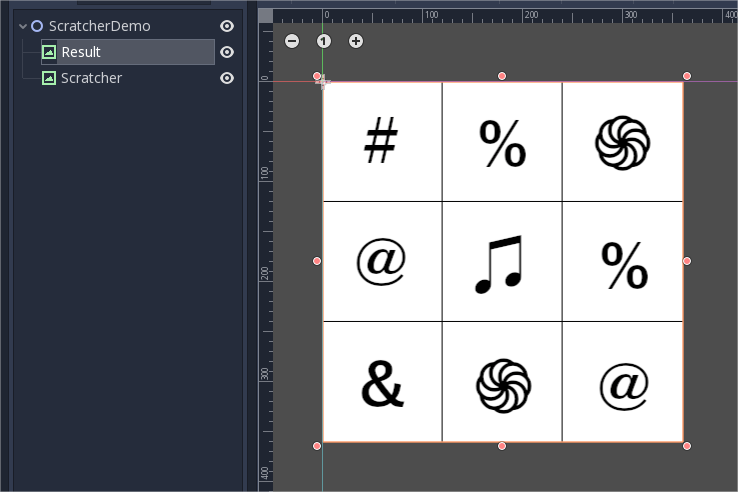
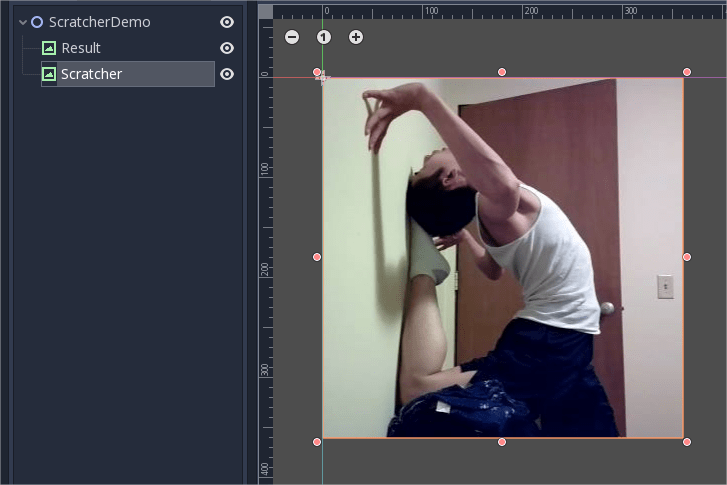
First, we’re going to have a 3×3 grid with a 4-pixel border (because the GridContainer automatically sets up a 4-pixel margin between the cells and I haven’t figured out a way to change that (there’s nothing in the reference to suggest it can be changed).

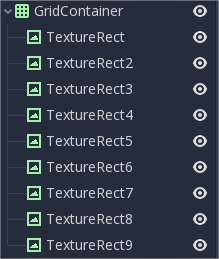
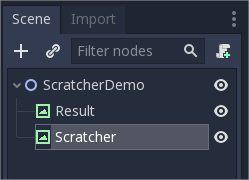
Next, add a GridContainer with 9 TextureRect nodes inside it.

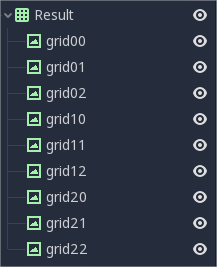
But rename them as follows, this will make it easy to swap out the textures later.

Set the GridContainer’s columns property to 3.

We’re going to need 2 new variables.

var textureDict = {}
var scratcher_texture

In the _init function, we’re going load the textures:
func _init():
	initEraser()
	initTextures()

func initTextures():
	textureDict["ampersand"] = load("res://assets/scratchertiles119/ampersand.png")
	textureDict["at"] = load("res://assets/scratchertiles119/at.png")
	textureDict["dollar"] = load("res://assets/scratchertiles119/dollar.png")
	textureDict["flower"] = load("res://assets/scratchertiles119/flower.png")
	textureDict["music"] = load("res://assets/scratchertiles119/music.png")
	textureDict["percent"] = load("res://assets/scratchertiles119/percent.png")
	textureDict["pound"] = load("res://assets/scratchertiles119/pound.png")
	scratcher_texture = load("res://assets/scratcher3.png")

Next, add a resetScratcher function:

func resetScratcher():
	var keys = textureDict.keys()
	for i in range(0,3):
		for j in range(0,3):
			var index = randi() % keys.size()
			get_node("Result/grid" + String(i) +  String(j)).texture = textureDict.get(keys[index])
	$Scratcher.set_texture(scratcher_texture)

Make sure to call it in _ready(). Test to make sure the grid gets populated with the symbols.

Next, we’re going to use a Timer to continuously reload the scratcher to make sure it will reset the scratcher appropriately. In the timeout handler, just call resetScratcher.

func _on_ScratcherTimer_timeout():
	resetScratcher()

Now, in your _process function, start the timer when we clear the Scratcher texture.

func _process(delta):
	if scratched_amount / num_pixels > complete_percentage:
		$Scratcher.set_texture(null)
		scratched_amount = 0.0
		$ScratcherTimer.start(2)

Link to full code

Progress Update #1

This is just a quick little post about what I’ve been up to lately. I’m not sure if I’m going to make a short video demoing the features I’ve added to my personal game yet, but let’s go ahead and get started.

Props

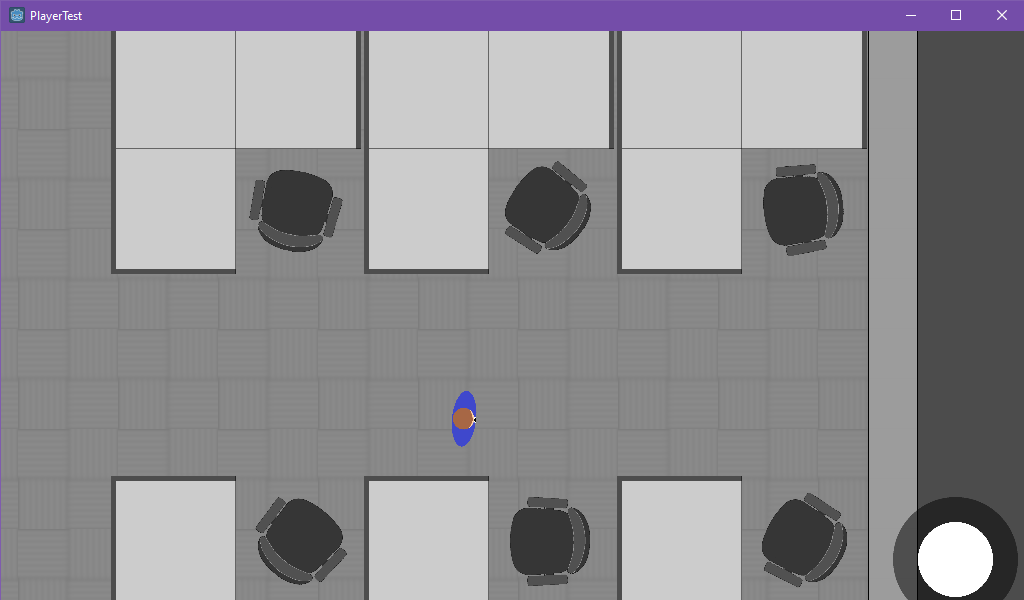
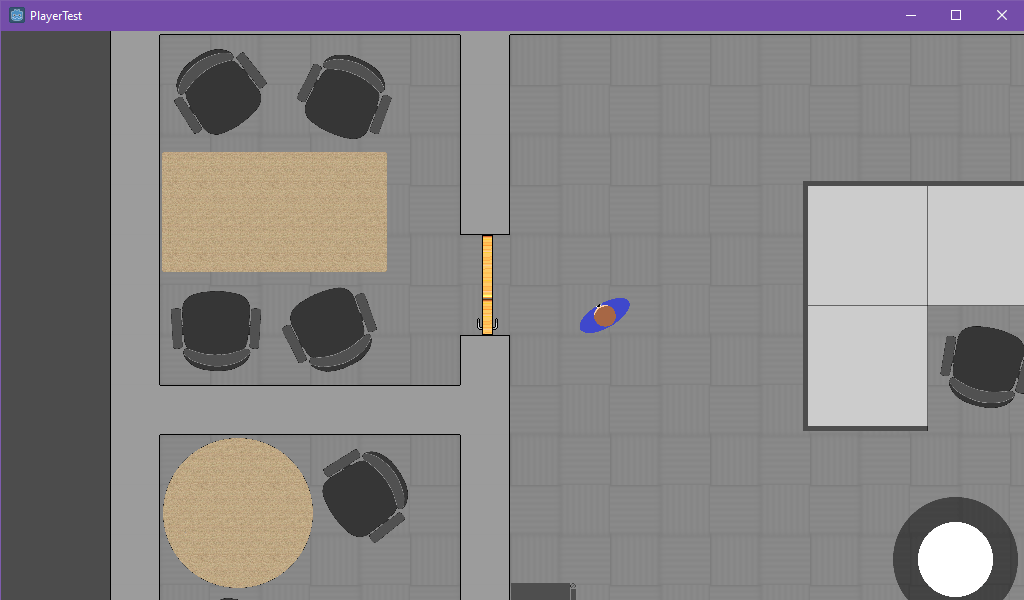
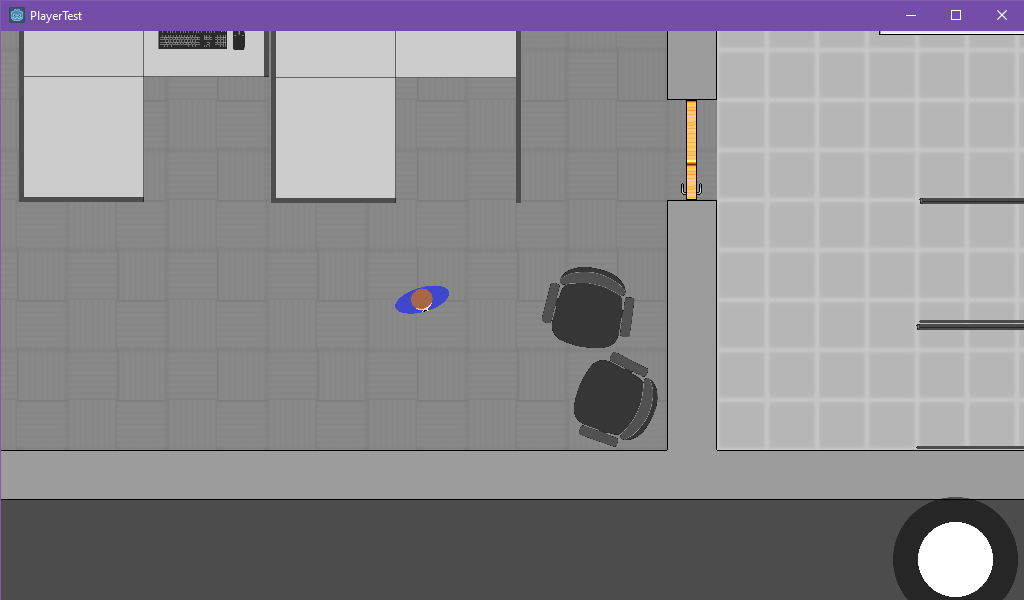
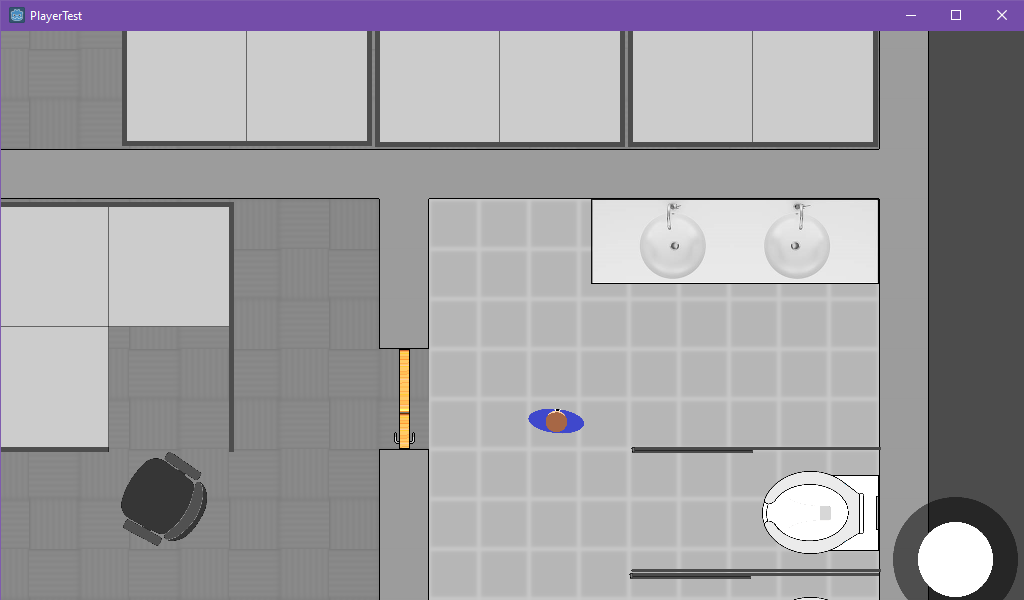
I’ve added several props to my game.

Cubicles:

Tables:
Computers

Rolling computer chairs that move around

And some bathroom stuff:

Floors

I used Tilemaps to produce a variety of floors for testing.

bath_tile.png
paisley_carpet.png
carpet_red.png
carpet_blue.png

I didn’t really like any of these as they all seemed to draw too much attention to the floor vs. the character walking around. I decided to create some wood tile floors:

These were also too colorful, so I ultimately decided up on gray tiling:

I realized that I needed to blur the floors to really pull attention away from the floor and after reading how performance intensive that could be, I decided to just blur them in Gimp before importing them.

Also, a big FYI, it turns out that there are some nice Tile Map features that aren’t advertised in the Godot tutorial page. Here’s some fancy shortcuts:

  • Ctrl+left click = eyedropper; sets tile to clicked tile
  • Shift+left click+drag = draw a straight line with selected tile
  • Ctrl+shift+left click+drag = draw a rectangle with selected tile
  • Shift + right click + drag = delete tile along straight line
  • Ctrl+shift+right click+drag = delete inside rectangle

So if you’re wondering, no, you don’t have to click each block individually, you can just paint an entire room’s worth of tiles. I only wish there were easier ways to build walls (I’m thinking Sim-style).

Walls

As you saw above, I have some rudimentary walls now… I started with very fancy walls that connected to one another in various ways and used tilemaps to build them.

concretewalls_tilemap.png
concretewalls2.png

The first image above was the tilemap I first which had my walls centered within a 100×100 pixel square grid, with various connectors for corners, T-intersections, and a single +-connector. However, this proved to be a bad idea because my floor tilemaps were also 100×100 pixels and would poke out the sides of the walls.

The second image is when I decided to stop having the walls centered and instead just take up the whole 100×100 square. This sort of worked, but alas, the walls were way too big and chunky.

Finally, I used 50×50 pixel walls where each one completely fills the square and the connectors are far less fancy. This is very rudimentary, but it works.

walls50x50.png

Doors

I put together some rudimentary doors as well, as you can see in the initial screenshots above.

Aside from the sprite, it consists of an Area2D to detect when the player is walking into one. Under that, is a StaticBody2D with a second CollisionShape2D to stop the player from going through if the door isn’t open (in case I want to add a keycard feature in the future, which is almost certainly the case).

The entire Scene is moved away from (0,0) so that when I rotate the door in code, it won’t just rotate around the door’s center. But if you were making a revolving door, you’d want to keep it centered. When the player’s body enters the Area2D, I rotate by 90 degrees, then set a timer to shut the door after 3 seconds.

The End

So that’s it. My next post is going to be a part 2 for the Scratcher stuff, which I’ve been holding off on because I don’t have much content, it’s just randomly drawing images at certain spots.

And here’s a preview of the level selector I’m going to use for my game:

How to make a Scratcher in Godot (Part 1)

Demo

Background

This is a tutorial for creating a scratcher feature using the Godot feature. This tutorial will focus on the “drawing” aspect of a scratcher rather than the loading and reloading of images.

If you’ve never heard of Godot, it is a 2D and 3D gaming engine that can export to virtually any platform. It’s designed to be easy for beginners and hobbyists, but also powerful enough for experienced developers. Get more information on Godot here.

If this engine sounds interesting to you, I suggest you follow the step-by-step guide on their website through the “Your first game” tutorial.

This series of tutorials is basically just a glimpse into my journey of making a puzzle game I’ve thought about for a number of years and I’ll be providing little gems as I come across them.

Implementation

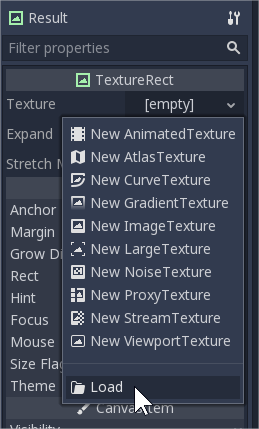
To my knowledge, there are only so many ways to display an image; and the only way to edit an image that is being displayed is using Image.set_pixel(). For this tutorial, I decided to use two TextureRect nodes. One for the image we’ll be scratching and the other to display the winning symbols.

None of the other options for TextureRect will work for this purpose, so we’re just going to load images to the two Texture objects.

Let’s start by just listening for a normal touch event rather than a drag, we’ll erase a circle’s worth of pixels around the touch position.

Some quick notes about my starting variables, we need a reference to the imageTexture which will help us translate between the image and the texture, and a reference to image object to get able to get and set pixel values. The radius will be the radius of the circle we are erasing from the image, which I’ve hardcoded to 50 pixels. The color erase is what we’re setting each pixel within the circle to; the only important parameter here is the last one, setting the alpha bit to 0.

extends Node2D

var imageTexture : ImageTexture
var image : Image
var radius = 50.0
var erase = Color(0.0, 0.0, 0.0, 0.0)

Now we’re ready to erase a circle:

extends Node2D

var imageTexture : ImageTexture
var image : Image
var radius = 50.0
var erase = Color(0.0, 0.0, 0.0, 0.0)

func _ready():
	imageTexture = ImageTexture.new()

func _input(event):
	if event is InputEventScreenTouch and event.pressed:
		image = $Scratcher.get_texture().get_data()
		
		image.lock()
		eraseCircle(event.position.x, event.position.y)
		image.unlock()
		
		imageTexture.create_from_image(image)
		$Scratcher.set_texture(imageTexture)
		
func eraseCircle(x, y):
	var i = 0
	var angle
	var xOutline
	var yOutline

	# erase outline
	while i < 2*PI:
		angle = i
		xOutline = radius * cos(angle)
		yOutline = radius * sin(angle)
		
		if (x + xOutline < 0) or (x + xOutline >= image.get_width()):
			i += PI/360
			continue
		if (y+yOutline < 0) or (y+yOutline >= image.get_height()):
			i += PI/360
			continue
		image.set_pixel(x + xOutline, y+yOutline, erase)
		
		i += PI/360

I’ve mostly taken this code from this tutorial.

Breaking down the not-erasing part of the code a bit more, what we’re doing is fetching the image from the TextureRect using TextureRect.get_texture() and Texture.get_data() which returns the image of the texture. Don’t forget to initialize the ImageTexture to an instance at some point (I did it in the _ready method).

Also notice that we have to lock and unlock the Image object. This is because the get_pixel() and set_pixel() functions require the image to be locked.

If you run the code at this point, you’ll correctly see a circle being erased where you click with your mouse pointer.

Next up, we need to fill in the circle inside the outline with the same “erase” color.

func eraseCircle(x, y):
	var i = 0
	var angle
	var xOutline
	var yOutline
	
	var j
	var xFill
	var yFill

	# erase outline
	while i < 2*PI:
		angle = i
		xOutline = radius * cos(angle)
		yOutline = radius * sin(angle)
		
		# erase fill
		j = 0
		while j < radius:
			xFill = j * cos(angle)
			yFill = j * sin(angle)
			if (x + xFill < 0) or (x + xFill >= image.get_width()):
				j+=1
				continue
			if (y+yFill < 0) or (y+yFill >= image.get_height()):
				j+=1
				continue
			image.set_pixel(x + xFill, y+yFill, erase)
			j+=1
		
		if (x + xOutline < 0) or (x + xOutline >= image.get_width()):
			i += PI/360
			continue
		if (y+yOutline < 0) or (y+yOutline >= image.get_height()):
			i += PI/360
			continue
		image.set_pixel(x + xOutline, y+yOutline, erase)
		
		i += PI/360

We’re basically just setting the pixels from the center of the circle to the radius along the angle each time we are drawing one piece of the circle’s outline.

Now that we have the circle functioning correctly, we can switch to the drag event, which will basically be erasing circles along the path from the origin point to the destination point.

func _input(event):
	if event is InputEventScreenTouch and event.pressed:
		image = $Scratcher.get_texture().get_data()
		
		image.lock()
		eraseCircle(event.position.x, event.position.y)
		image.unlock()
		
		imageTexture.create_from_image(image)
		$Scratcher.set_texture(imageTexture)
	if event is InputEventScreenDrag:
		var target = event.position + event.relative
		var temp = event.position
		var starting_distance = temp.distance_to(target)
		image = $Scratcher.get_texture().get_data()
		image.lock()
		while temp.distance_to(event.position) < starting_distance:
			eraseCircle(temp.x, temp.y)
			temp += (event.relative.normalized() * event.speed)
		image.unlock()
		imageTexture.create_from_image(image)
		$Scratcher.set_texture(imageTexture)

A common feature of many scratcher apps is the auto-finishing of the scratcher after the user has scratched “enough” of the scratcher for it to be considered complete.

There are two ways to accomplish this. The first is to scan through the Scratcher texture’s image to see how many pixels are transparent, but this is extremely costly to do unless you only check every several tens or hundreds of frames. The simpler, less taxing way to do it is to just keep a counter of how many pixels we’ve modified.

extends Node2D

var imageTexture : ImageTexture
var image : Image
var radius = 50.0
var erase = Color(0.0, 0.0, 0.0, 0.0)
var complete_percentage = 0.5
var scratched_amount = 0.0
var num_pixels

func _ready():
	imageTexture = ImageTexture.new()
	image = $Scratcher.get_texture().get_data()
	num_pixels = image.get_height() * image.get_width()

func _process(delta):
	if scratched_amount / num_pixels > complete_percentage:
		$Scratcher.set_texture(null)

func _input(event):
	if $Scratcher.get_texture() == null: return
	if event is InputEventScreenTouch and event.pressed:
		image = $Scratcher.get_texture().get_data()
		
		image.lock()
		eraseCircle(event.position.x, event.position.y)
		image.unlock()
		
		imageTexture.create_from_image(image)
		$Scratcher.set_texture(imageTexture)
	if event is InputEventScreenDrag:
		var target = event.position + event.relative
		var temp = event.position
		var starting_distance = temp.distance_to(target)
		image = $Scratcher.get_texture().get_data()
		image.lock()
		while temp.distance_to(event.position) < starting_distance:
			eraseCircle(temp.x, temp.y)
			temp += (event.relative.normalized() * event.speed)
		image.unlock()
		imageTexture.create_from_image(image)
		$Scratcher.set_texture(imageTexture)
		
func eraseCircle(x, y):
	var i = 0
	var angle
	var xOutline
	var yOutline
	
	var j
	var xFill
	var yFill

	# erase outline
	while i < 2*PI:
		angle = i
		xOutline = radius * cos(angle)
		yOutline = radius * sin(angle)
		
		# erase fill
		j = 0
		while j < radius:
			xFill = j * cos(angle)
			yFill = j * sin(angle)
			if (x + xFill < 0) or (x + xFill >= image.get_width()):
				j+=1
				continue
			if (y+yFill < 0) or (y+yFill >= image.get_height()):
				j+=1
				continue
			var prev_color = image.get_pixel(x + xFill, y+yFill)
			if prev_color.a > 0:
				scratched_amount+=1
			image.set_pixel(x + xFill, y+yFill, erase)
			j+=1
		
		if (x + xOutline < 0) or (x + xOutline >= image.get_width()):
			i += PI/360
			continue
		if (y+yOutline < 0) or (y+yOutline >= image.get_height()):
			i += PI/360
			continue
		var prev_color = image.get_pixel(x + xOutline, y+yOutline)
		if prev_color.a > 0:
			scratched_amount+=1
		image.set_pixel(x + xOutline, y+yOutline, erase)
		
		i += PI/360

Our scratcher demo is basically done at this point, however, if you try to run it, you’ll notice the behavior is quite sluggish.

Optimization

What’s happening right now is that despite how small our image is, when we draw a circle, we’re drawing a whole bunch of times, but we don’t need to be doing that when our image is so small and our radius is also really small. So instead, we’re going to use some variables to control how fine/thorough we draw our circles.

extends Node2D

var imageTexture : ImageTexture
var image : Image
var radius = 50.0
var erase = Color(0.0, 0.0, 0.0, 0.0)
var complete_percentage = 0.5
var scratched_amount = 0.0
var num_pixels
const fillIntensity = 50
const circleIntensity = 360

func _ready():
	imageTexture = ImageTexture.new()
	image = $Scratcher.get_texture().get_data()
	num_pixels = image.get_height() * image.get_width()

func _process(delta):
	if scratched_amount / num_pixels > complete_percentage:
		$Scratcher.set_texture(null)

func _input(event):
	if $Scratcher.get_texture() == null: return
	if event is InputEventScreenTouch and event.pressed:
		image = $Scratcher.get_texture().get_data()
		
		image.lock()
		eraseCircle(event.position.x, event.position.y)
		image.unlock()
		
		imageTexture.create_from_image(image)
		$Scratcher.set_texture(imageTexture)
	if event is InputEventScreenDrag:
		var target = event.position + event.relative
		var temp = event.position
		var starting_distance = temp.distance_to(target)
		image = $Scratcher.get_texture().get_data()
		image.lock()
		while temp.distance_to(event.position) < starting_distance:
			eraseCircle(temp.x, temp.y)
			temp += (event.relative.normalized() * event.speed)
		image.unlock()
		imageTexture.create_from_image(image)
		$Scratcher.set_texture(imageTexture)
		
func eraseCircle(x, y):
	var i = 0
	var angle
	var xOutline
	var yOutline
	
	var j
	var xFill
	var yFill

	# erase outline
	while i < 2*PI:
		angle = i
		xOutline = radius * cos(angle)
		yOutline = radius * sin(angle)
		
		# erase fill
		j = 0
		while j < radius:
			xFill = j * cos(angle)
			yFill = j * sin(angle)
			if (x + xFill < 0) or (x + xFill >= image.get_width()):
				j+=radius/fillIntensity
				continue
			if (y+yFill < 0) or (y+yFill >= image.get_height()):
				j+=radius/fillIntensity
				continue
			var prev_color = image.get_pixel(x + xFill, y+yFill)
			if prev_color.a > 0:
				scratched_amount+=1
			image.set_pixel(x + xFill, y+yFill, erase)
			j+=radius/fillIntensity
		
		if (x + xOutline < 0) or (x + xOutline >= image.get_width()):
			i += PI/circleIntensity
			continue
		if (y+yOutline < 0) or (y+yOutline >= image.get_height()):
			i += PI/circleIntensity
			continue
		var prev_color = image.get_pixel(x + xOutline, y+yOutline)
		if prev_color.a > 0:
			scratched_amount+=1
		image.set_pixel(x + xOutline, y+yOutline, erase)
		
		i += PI/circleIntensity

Another way to improve on this design is to use Image.blit_rect() to stamp the eraser onto the image. A big disadvantage of this is that we will no longer be able to keep track of exactly which pixels we’re changing so we can clear the scratcher once most of it is complete. Instead, we’re going to need to loop through the image every so often in _process to see how many pixels are visible.

extends Node2D

var imageTexture : ImageTexture
var image : Image
var radius = 50.0
var erase = Color(0.0, 0.0, 0.0, 0.0)
var complete_percentage = 0.5
var scratched_amount = 0.0
var num_pixels
const fillIntensity = 48
const circleIntensity = 120

var eraser : Image 
var eraserMask : Image
var eraserSize = 0
var alphaOne = Color(0.0, 0.0, 0.0, 1.0)
var intDelta = 0.0

func _init():
	initEraser()

func initEraser():
	eraser = Image.new()
	eraserMask = Image.new()
	eraser.create(radius*2, radius*2,false,Image.FORMAT_RGBA8)
	eraserMask.create(radius*2, radius*2,false,Image.FORMAT_RGBA8)
	var x = radius
	var y = radius
	var i = 0
	var angle
	var x1
	var y1
	
	var j 
	var x2
	var y2
	
	eraser.fill(Color(1.0,0.0,0.0,1.0))
	eraser.lock()
	eraserMask.lock()
	# erase outline
	while i < 2*PI:
		angle = i
		x1 = radius * cos(angle)
		y1 = radius * sin(angle)
		
		# erase fill
		j = 0
		while j < radius:
			x2 = j * cos(angle)
			y2 = j * sin(angle)
			if (x + x2 < 0) or (x + x2 >= eraser.get_width()):
				j+=radius/fillIntensity
				continue
			if (y+y2 < 0) or (y+y2 >= eraser.get_height()):
				j+=radius/fillIntensity
				continue
			var prev_color = eraser.get_pixel(x + x2, y+y2)
			if prev_color.a > 0:
				eraserSize+=1
			eraser.set_pixel(x + x2, y+y2, erase)
			eraserMask.set_pixel(x + x2, y+y2, alphaOne)
			j+=radius/fillIntensity
		if (x + x1 < 0) or (x + x1 >= eraser.get_width()):
			i += PI/circleIntensity
			continue
		if (y+y1 < 0) or (y+y1 >= eraser.get_height()):
			i += PI/circleIntensity
			continue
		var prev_color = eraser.get_pixel(x + x1, y+y1)
		if prev_color.a > 0:
			eraserSize+=1
		eraser.set_pixel(x + x1, y+y1, erase)
		eraserMask.set_pixel(x + x2, y+y2, alphaOne)
		i += PI/circleIntensity
	eraser.unlock()
	eraserMask.unlock()

func _ready():
	imageTexture = ImageTexture.new()
	image = $Scratcher.get_texture().get_data()
	num_pixels = image.get_height() * image.get_width()

func _process(delta):
	var x = 0
	var y = 0
	var pixel : Color
	var erase_count = 0.0
	var times = 0
	
	intDelta += delta
	if intDelta > 0.15:
		intDelta = 0.0
	else:
		return
	if $Scratcher.get_texture() == null: return
	image = $Scratcher.get_texture().get_data()
	
	image.lock()
	for x in range(0, image.get_width()):
		for y in range(0, image.get_height()):
			pixel = image.get_pixel(x,y)
			if (pixel.a < 1): 
				erase_count+=1.0
			y+=1
		x+=1
	if erase_count / num_pixels > complete_percentage:
		$Scratcher.set_texture(null)
	image.unlock()
	#if scratched_amount / num_pixels > complete_percentage:
	#	$Scratcher.set_texture(null)

func _input(event):
	if $Scratcher.get_texture() == null: return
	if event is InputEventScreenTouch and event.pressed:
		image = $Scratcher.get_texture().get_data()
		
		#image.lock()
		#eraseCircle(event.position.x, event.position.y)
		#image.unlock()
		image.blit_rect_mask(eraser,eraserMask,eraser.get_used_rect(),Vector2(event.position.x - radius,event.position.y - radius))
		
		imageTexture.create_from_image(image)
		$Scratcher.set_texture(imageTexture)
	if event is InputEventScreenDrag:
		var target = event.position + event.relative
		var temp = event.position
		var starting_distance = temp.distance_to(target)
		image = $Scratcher.get_texture().get_data()
		#image.lock()
		while temp.distance_to(event.position) < starting_distance:
			#eraseCircle(temp.x, temp.y)
			image.blit_rect_mask(eraser,eraserMask,eraser.get_used_rect(),Vector2(event.position.x - radius,event.position.y - radius))
			temp += (event.relative.normalized() * event.speed)
		#image.unlock()
		imageTexture.create_from_image(image)
		$Scratcher.set_texture(imageTexture)
		
func eraseCircle(x, y):
	var i = 0
	var angle
	var xOutline
	var yOutline
	
	var j
	var xFill
	var yFill

	# erase outline
	while i < 2*PI:
		angle = i
		xOutline = radius * cos(angle)
		yOutline = radius * sin(angle)
		
		# erase fill
		j = 0
		while j < radius:
			xFill = j * cos(angle)
			yFill = j * sin(angle)
			if (x + xFill < 0) or (x + xFill >= image.get_width()):
				j+=radius/fillIntensity
				continue
			if (y+yFill < 0) or (y+yFill >= image.get_height()):
				j+=radius/fillIntensity
				continue
			var prev_color = image.get_pixel(x + xFill, y+yFill)
			if prev_color.a > 0:
				scratched_amount+=1
			image.set_pixel(x + xFill, y+yFill, erase)
			j+=radius/fillIntensity
		
		if (x + xOutline < 0) or (x + xOutline >= image.get_width()):
			i += PI/circleIntensity
			continue
		if (y+yOutline < 0) or (y+yOutline >= image.get_height()):
			i += PI/circleIntensity
			continue
		var prev_color = image.get_pixel(x + xOutline, y+yOutline)
		if prev_color.a > 0:
			scratched_amount+=1
		image.set_pixel(x + xOutline, y+yOutline, erase)
		
		i += PI/circleIntensity

I don’t like this as much because it doesn’t feel as reactive. Maybe if you decide upon this approach, you can play around with ways to make it more responsive.

Next Time

Next time, I’m going to post a tutorial on how to randomize the result behind the scratcher.

How to Make a Touch Joystick in Godot

Demo

Background

In this tutorial, I’m going to show you how I made a touch joystick in the Godot Engine.

If you’ve never heard of Godot, it is a 2D and 3D gaming engine that can export to virtually any platform. It’s designed to be easy for beginners and hobbyists, but also powerful enough for experienced developers. Get more information on Godot here.

If this engine sounds interesting to you, I suggest you follow the step-by-step guide on their website through the “Your first game” tutorial.

This series of tutorials is basically just a glimpse into my journey of making a puzzle game I’ve thought about for a number of years and I’ll be providing little gems as I come across them.

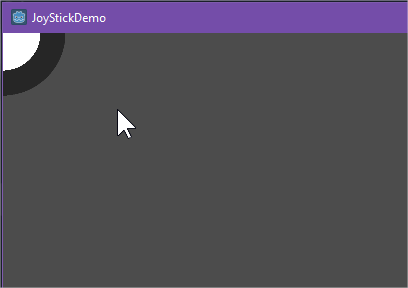
First off, if you’re unfamiliar with what I mean by a Touch Joystick, it’s a virtual joystick that appears on touchscreens that users can manipulate as though it was a physical one. Here are some images that might give you an idea.

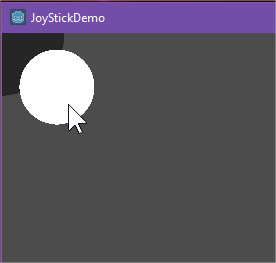
Here’s a video demo of my finished touch joystick:

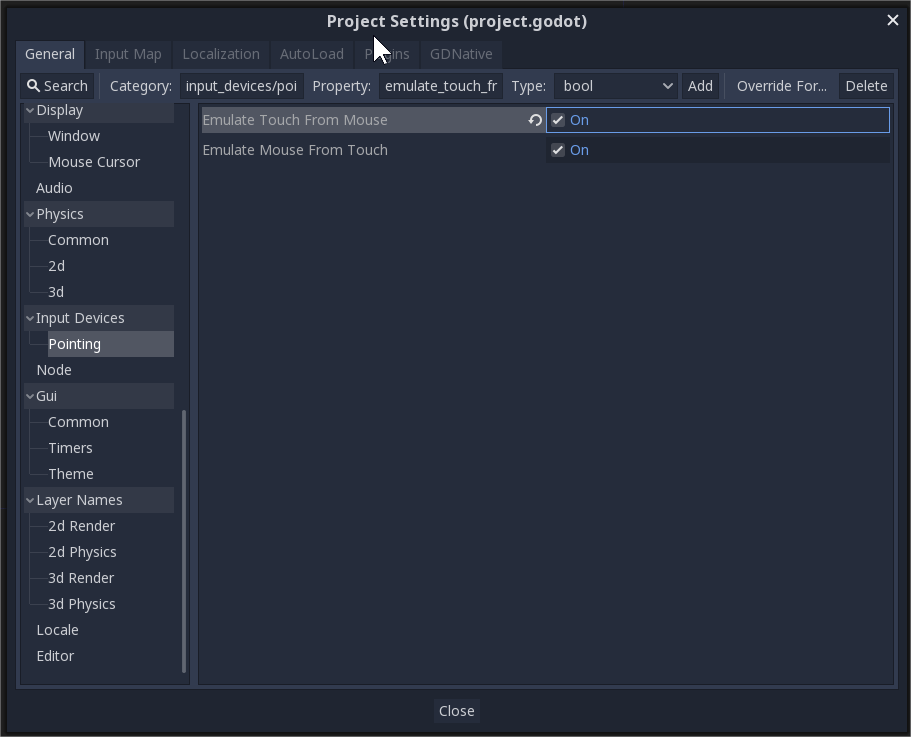
Prerequisites

First off, remember to turn on the setting for emulating touch from mouse input. The Godot editor doesn’t seem to allow touch input when debugging within it.

Implementation

The first thing we’re going to do is create two circles. Here, I’m using two Sprite nodes, JoyStick, and JoyBase. The JoyStick is going to be smaller than the JoyBase. Make sure not to change their positions, they should both be centered around (0,0).

Next, we need a script for the JoyStick that listens for touch input and adjusts the position of the Joystick accordingly.

I’m adding the script to the JoyStick sprite node because if I attach the script to the parent node, the entire scene will change position rather than just the joystick itself (unless I decide to always access the child’s positioning, which feels like a hassel).

Here’s what I’m starting with:

func _input(event):
	if event is InputEventScreenDrag:
		position.x = position.x + event.relative.x
		position.y = position.y + event.relative.y

This allows us to drag the center circle anywhere around the screen.

But we don’t want the joystick to be able to leave the base, so we’re going to clamp it’s position (except we won’t use clamp):

func _input(event):
	if event is InputEventScreenDrag:
		position.x = position.x + event.relative.x
		position.y = position.y + event.relative.y
		if position.length() > maxLength:
			var angle = position.angle()
			position.x = cos(angle) * maxLength
			position.y = sin(angle) * maxLength

This way, the inner circle will never be allowed to leave the outer circle. We can’t use clamp because that only works for rectangular clamping, so instead, we’re having to figure out the angle of the drag vector and setting the length to be the maximum radius.

In order to obtain the maximum radius, you may need to do some fancy math to obtain (unless Godot decides to implement a global size property. (Otherwise, you can calculate the radii of the two circles manually and just hardcode maximum radius like I did initially)

extends Sprite

var radiusJoyStick 
var radiusJoyBase 
var maxLength
# Called when the node enters the scene tree for the first time.
func _ready():
	radiusJoyStick = global_scale.x * texture.get_size().x/2;
	radiusJoyBase = get_node("../JoyBase").global_scale.x * $"../JoyBase".texture.get_size().x/2
	maxLength = radiusJoyBase - radiusJoyStick

Anyway, now the JoyStick, can’t leave the base.

Next step in trying to get this scene to behave like a real-life joystick is to re-center the joystick when the user releases their finger. This is extremely easy.

func _input(event):
	if event is InputEventScreenDrag:
		position.x = position.x + event.relative.x
		position.y = position.y + event.relative.y
		if position.length() > maxRadius:
			var angle = position.angle()
			position.x = cos(angle) * maxRadius
			position.y = sin(angle) * maxRadius
	if event is InputEventScreenTouch and !event.pressed:
		position.x = 0
		position.y = 0

Now, the circle returns to (0,0) when the user lets go of it.

The last movement restriction we’re going to add is to make sure the joystick doesn’t move if the user did not start dragging with their finger in the joystick circle itself. That way, the joystick won’t move if the user is just dragging other elements around the screen.

Before I continue, I need to explain how the InputEventScreenDrag event works. It doesn’t produce a clean origin point and finishing point. Instead, as you’re dragging your finger across the screen, it produces a series of origin points and drag points calling the _input() function each time. With this in mind, if we’re going to restrict the joystick’s movement by where the initial start point of the dragging was, we need to use the InputEventScreenTouch event instead. So here, we are listening for when the screen is touched checking if that point is inside the joystick circle and then setting a flag based on that evaluation. We then update the drag event block to check that flag.

extends Sprite

var radiusJoyStick 
var radiusJoyBase 
var maxRadius
var touchInsideJoystick = false
# Called when the node enters the scene tree for the first time.
func _ready():
	radiusJoyStick = global_scale.x * texture.get_size().x/2;
	radiusJoyBase = get_node("../JoyBase").global_scale.x * $"../JoyBase".texture.get_size().x/2
	maxRadius = radiusJoyBase - radiusJoyStick

func _input(event):
	if event is InputEventScreenDrag:
		if touchInsideJoystick == true:
			position.x = position.x + event.relative.x
			position.y = position.y + event.relative.y
			if position.length() > maxRadius:
				var angle = position.angle()
				position.x = cos(angle) * maxRadius
				position.y = sin(angle) * maxRadius
	if event is InputEventScreenTouch:
		if !event.pressed:
			position.x = 0
			position.y = 0
		if event.pressed:
			touchInsideJoystick = (event.position - global_position).length() <= radiusJoyStick

Perfect. Now the control behaves just like a real joystick. We just need to emit a signal to allow other scenes to get it’s position.

extends Sprite

signal joystick_moved
signal joystick_released
var radiusJoyStick 
var radiusJoyBase 
var maxRadius
var touchInsideJoystick = false
# Called when the node enters the scene tree for the first time.
func _ready():
	radiusJoyStick = global_scale.x * texture.get_size().x/2;
	radiusJoyBase = get_node("../JoyBase").global_scale.x * $"../JoyBase".texture.get_size().x/2
	maxRadius = radiusJoyBase - radiusJoyStick

func _input(event):
	if event is InputEventScreenDrag:
		if touchInsideJoystick == true:
			position.x = position.x + event.relative.x
			position.y = position.y + event.relative.y
			if position.length() > maxRadius:
				var angle = position.angle()
				position.x = cos(angle) * maxRadius
				position.y = sin(angle) * maxRadius
			emit_signal("joystick_moved", position)
	if event is InputEventScreenTouch:
		if !event.pressed:
			position.x = 0
			position.y = 0
			emit_signal("joystick_released")
		if event.pressed:
			touchInsideJoystick = (event.position - global_position).length() <= radiusJoyStick

Testing

The beauty in keeping the Joystick at (0,0) is that the position vector can now be used to determine the direction and the speed. .angle() gets the direction of the vector from -PI/2 to PI/2, and the position with respect to the maxRadius can tell you how fast the character should be moving.

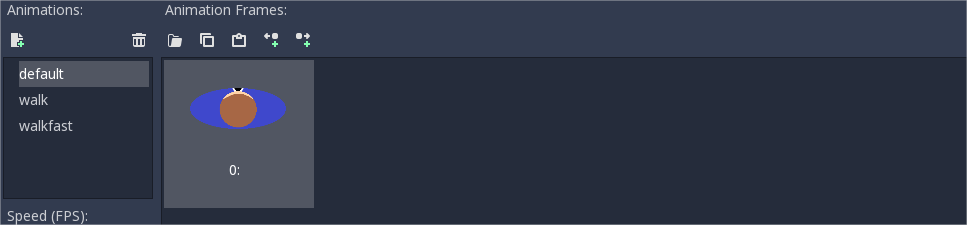
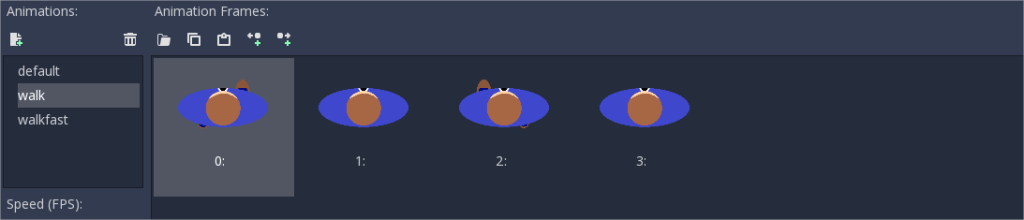
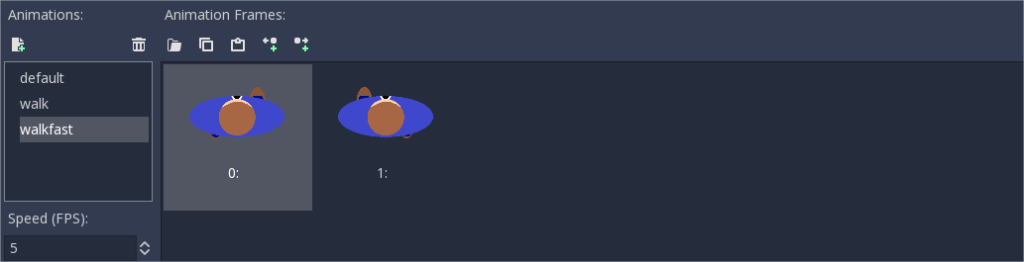
I won’t bog you down with too many details about the implementation of the Player scene because yours will likely be very different than mine, but I have a series of rudimentary sprites here:

I have some testing code for controlling the character with a keyboard that isn’t applicable for this demo (but let me know in the comments if you’d like a breakdown, you shouldn’t because it’s really simple).

extends Area2D

# Declare member variables here. Examples:
var speed = 10
var direction = PI / 2
var joystick_vector = Vector2()

# Called every frame. 'delta' is the elapsed time since the previous frame.
func _process(delta):
	var velocity = Vector2()
	# ARROW KEYS
	var any_key_pressed = false
	if Input.is_action_pressed("ui_left"):
		rotation -= PI/20
		any_key_pressed = true
	if Input.is_action_pressed("ui_right"):
		rotation += PI/20
		any_key_pressed = true
	if Input.is_action_pressed("ui_up"):
		direction = rotation - PI/2
		velocity = Vector2(speed, 0).rotated(direction)
		any_key_pressed = true
	if Input.is_action_pressed("ui_down"):
		pass
	if any_key_pressed == true:
		position += velocity.normalized()
	
	# JOYSTICK
	if joystick_vector.x == 0 and joystick_vector.y == 0:
		$AnimatedSprite.play("default")
	else:
		rotation = joystick_vector.angle() + PI/2
		if (joystick_vector.length() > 12.5):
			$AnimatedSprite.play("walkfast")
		else:
			$AnimatedSprite.play("walk")
		velocity = Vector2((joystick_vector.length()/25) * speed,0).rotated(joystick_vector.angle())
		position += velocity

	position.x = clamp(position.x, 0, get_viewport_rect().size.x)
	position.y = clamp(position.y, 0, get_viewport_rect().size.y)
	
func _on_joystick_moved(v):
	joystick_vector = v
	
func _on_joystick_released():
	joystick_vector = Vector2(0,0)

All that is really important here is two functions for listening to the signals and a Vector variable to store the vector sent by the signal.

As I said above, we use the length of the vector with respect to MaxRadius (which I’ve hardcoded in this instance, but shut up!) to determine the speed the character should be moving (with respect to its maximum speed). The .angle() property is used to determine where the character should face along with the direction of the moving vector.

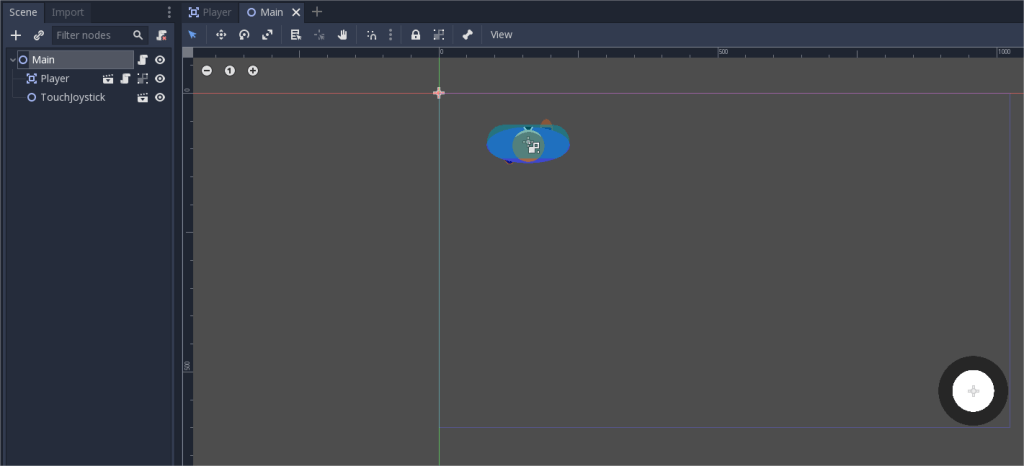
Finally, we need a main scene where we add both the Player and the TouchJoystick.

And then we just connect the signals:

extends Node2D

# Called when the node enters the scene tree for the first time.
func _ready():
	$TouchJoystick/JoyStick.connect("joystick_moved",$Player,"_on_joystick_moved")
	$TouchJoystick/JoyStick.connect("joystick_released",$Player,"_on_joystick_released")

Link to full code

Design a site like this with WordPress.com
Get started